
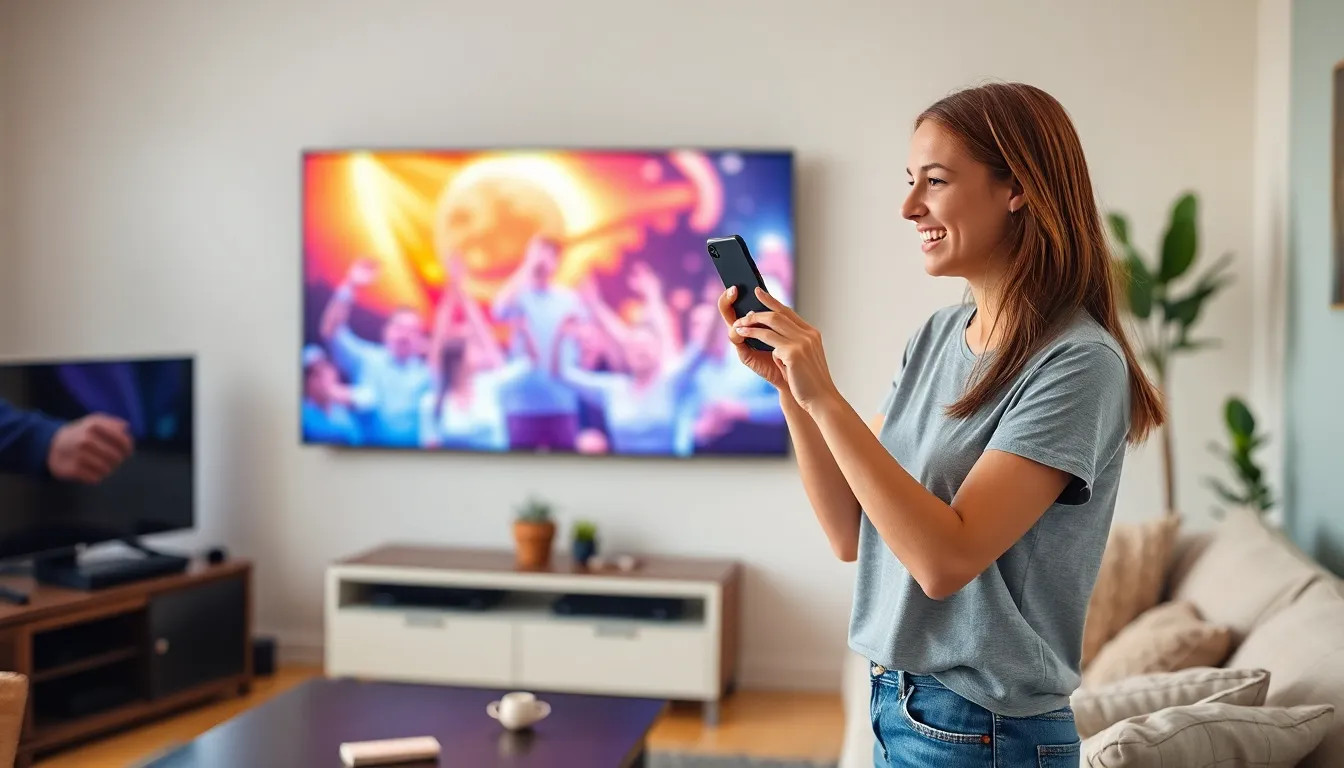
Ever found yourself in a situation where you want to share that hilarious cat video or the latest TikTok dance challenge with friends but can’t figure out how to get it on the big screen? Fear not! Screen mirroring on an iPhone is easier than finding your keys after a long day.
In this digital age, knowing how to screen mirror can turn your tiny phone display into a captivating cinematic experience. Whether it’s for a family movie night or a presentation at work, mastering this feature can make you the tech-savvy hero of any gathering. So, let’s dive into the depths of iPhone settings and uncover the hidden treasure of screen mirroring. Who knew that sharing your screen could be this fun?
Understanding Screen Mirroring
Screen mirroring allows iPhone users to display their device’s screen on a larger screen, enhancing the viewing experience. This feature simplifies sharing videos, presentations, and photos in various settings.
What Is Screen Mirroring?
Screen mirroring refers to the process of duplicating an iPhone’s display onto another screen, such as a smart TV or projector. Users access this feature through Control Center, making it quick and easy. When engaged, everything shown on the iPhone appears on the external display, creating a synchronized experience. Apple’s AirPlay technology often facilitates this connection, ensuring high-quality viewing.
Benefits of Screen Mirroring
Users experience several advantages with screen mirroring. Sharing content becomes seamless, making it ideal for gatherings or presentations. Larger displays enhance visibility, enabling friends and family to enjoy videos together. Educational scenarios benefit, as teachers can showcase information to students effectively. Being able to control the display from the iPhone adds convenience and flexibility. Additionally, screen mirroring supports various apps and games, enriching entertainment options.
Locating Screen Mirroring in iPhone Settings
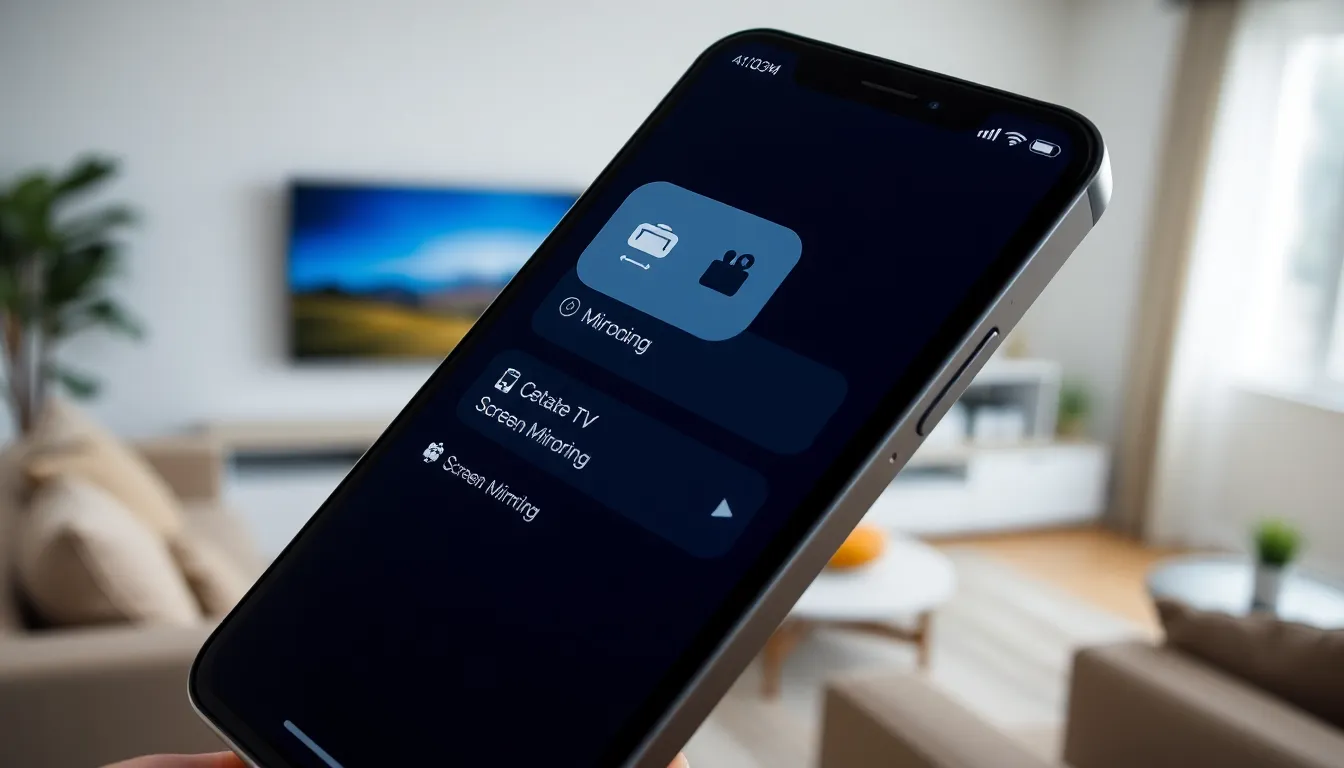
Finding screen mirroring on an iPhone involves accessing specific settings. Users can quickly share their device’s display with larger screens by knowing where to look.
Accessing Control Center
To access Control Center on most iPhones, swipe down from the upper-right corner of the screen. On older models, swiping up from the bottom edge works. Users will notice several icons displayed. Screen mirroring is represented by a rectangular icon with a triangle at the bottom. Tapping this icon opens available devices. Choose the desired screen or smart TV to initiate mirroring.
Navigating to Display Settings
Navigating to display settings on an iPhone provides additional options for screen mirroring. Users can find this by opening the Settings app. From there, selecting Display & Brightness leads to display options. The AirPlay feature typically appears here for compatible devices. This section allows users to manage and customize their screen mirroring preferences effectively.
Compatible Devices for Screen Mirroring
Multiple devices support screen mirroring with iPhones. Knowing about these devices enhances usability and expands sharing options.
AirPlay-Compatible Devices
Apple’s AirPlay technology makes screen mirroring possible with specific hardware. Smart TVs from brands like Samsung, LG, and Sony often include AirPlay capability. Streaming devices, such as Apple TV, facilitate easy mirroring. Moreover, various projectors that support AirPlay bring mobile content to larger displays. HomePod speakers enhance audio when streaming video or music from an iPhone. Many newer computer monitors also feature AirPlay support, adding versatility for presentations or gaming.
Limitations with Non-Compatible Devices
Not all devices support screen mirroring. Older televisions typically lack the required technology, leading to compatibility issues. Computers running older operating systems may not recognize iPhones for screen sharing. Some budget streaming devices do not support AirPlay, limiting usage scenarios. Incompatibility can also arise with older projectors, which may require adapters or additional hardware to mirror content. Users should check specifications before attempting to connect their iPhone to ensure a smooth experience.
Troubleshooting Screen Mirroring Issues
Screen mirroring can occasionally present challenges for users. Understanding common problems can help resolve issues efficiently.
Common Problems
Users may experience connectivity issues when attempting to mirror their screens. Devices might not appear as available options in the Control Center, often caused by compatibility problems. Sometimes, users find lag or pixelation in the mirrored display, which can stem from poor Wi-Fi connectivity. Additionally, software updates may affect functionality, especially if the iPhone or the connecting device requires upgrading. Users frequently encounter failure to connect, which can arise from forgotten device settings or interference from other devices.
Solutions and Tips
To fix connection problems, verifying both devices are on the same Wi-Fi network is essential. Restarting the iPhone and the target device often helps in establishing a fresh connection. Regularly updating software on both devices ensures compatibility and optimal performance. Adjusting the distance between the devices may improve signal strength and reduce lag. Users might also consider resetting network settings if problems persist, as this can resolve underlying connectivity issues. Lastly, disabling other Bluetooth devices can prevent interference that disrupts screen mirroring.
Mastering screen mirroring on an iPhone opens up a world of possibilities for sharing and enjoying content. By knowing where to find this feature in the settings, users can effortlessly connect to larger screens and enhance their viewing experiences. Whether for social gatherings or educational purposes, screen mirroring provides a convenient way to showcase videos and presentations.
With compatibility across a range of devices and the ability to troubleshoot common issues, users can enjoy seamless connectivity. Embracing this feature not only makes sharing easier but also elevates the overall experience, making it a valuable skill for any iPhone user.